Back to Home Page
Installing teamspeak
Before installing teamspeak you have a choice to make, teamspeak offers 2 different clients. The main difference between them is 3 has an old interface but you are not required to sign up for a teamspeak account. While 6 has a newer interface but requires a free teamspeak account.
On the teamspeak DOWNLOAD page you can select your preffered teamspeak client by clicking Teamspeak 3 or TeamSpeak 6 button as shown in the screenshot below
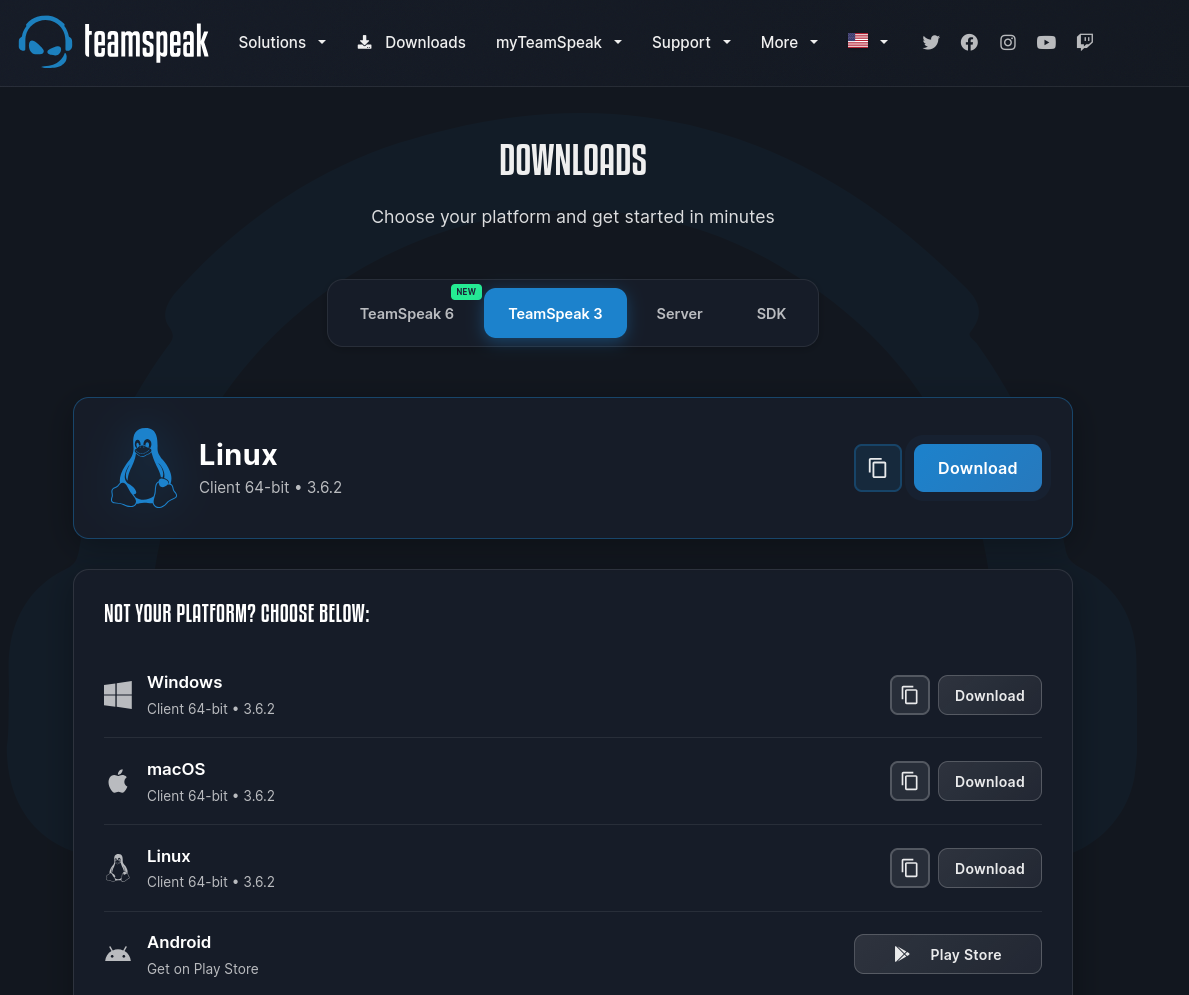
Choose your teamspeak version
TeamSpeak 3 Guide
or
TeamSpeak 6 Guide
Guides
Ts3:
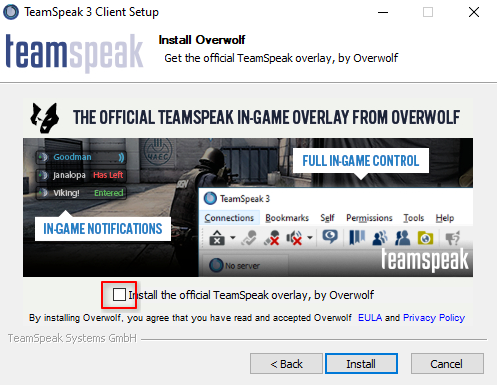
When installing teamspeak 3 it will ask you if you want to install the optional software called overwolf, you do not need this so it is recommended to uncheck the checkbox marked with red as shown in the screenshot below.
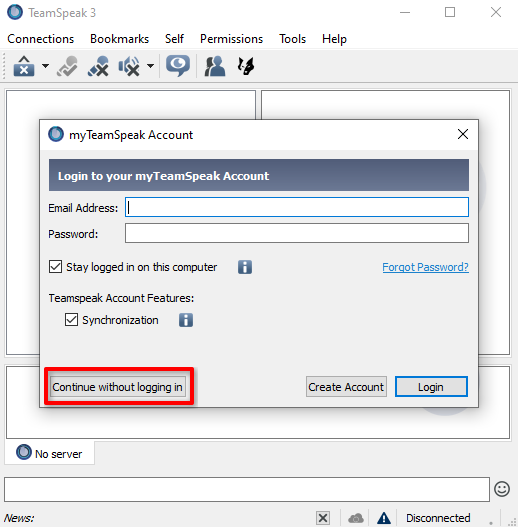
After opening teamspeak it will ask you if you want to create an account but you do not have to if you’d prefer not to. Click continue without logging in or make an account
Joining the server
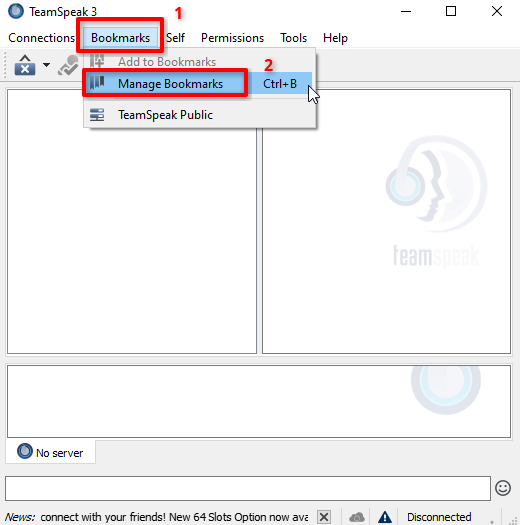
Click on the Bookmarks button and then Manage Bookmarks
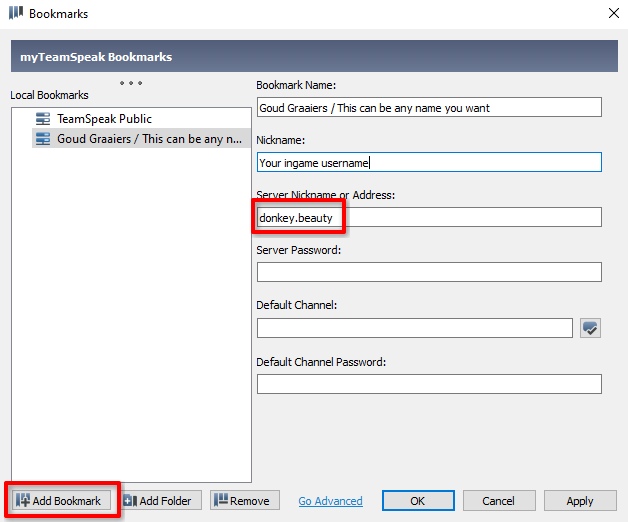
The only important field is the Server Nickname or Adress
which should be donkey.beauty
For nickname set it to your ingame username, the bookmark name is just how you will see it in your own bookmark list.
Leave the password field empty
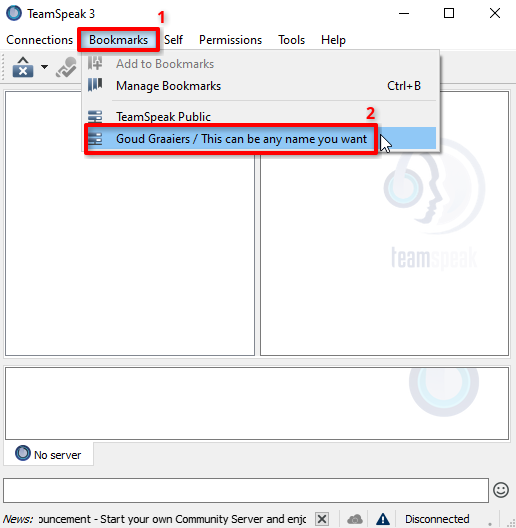
Now that you’ve saved the bookmark it will always show up in your bookmarks list as shown below.
Ts6
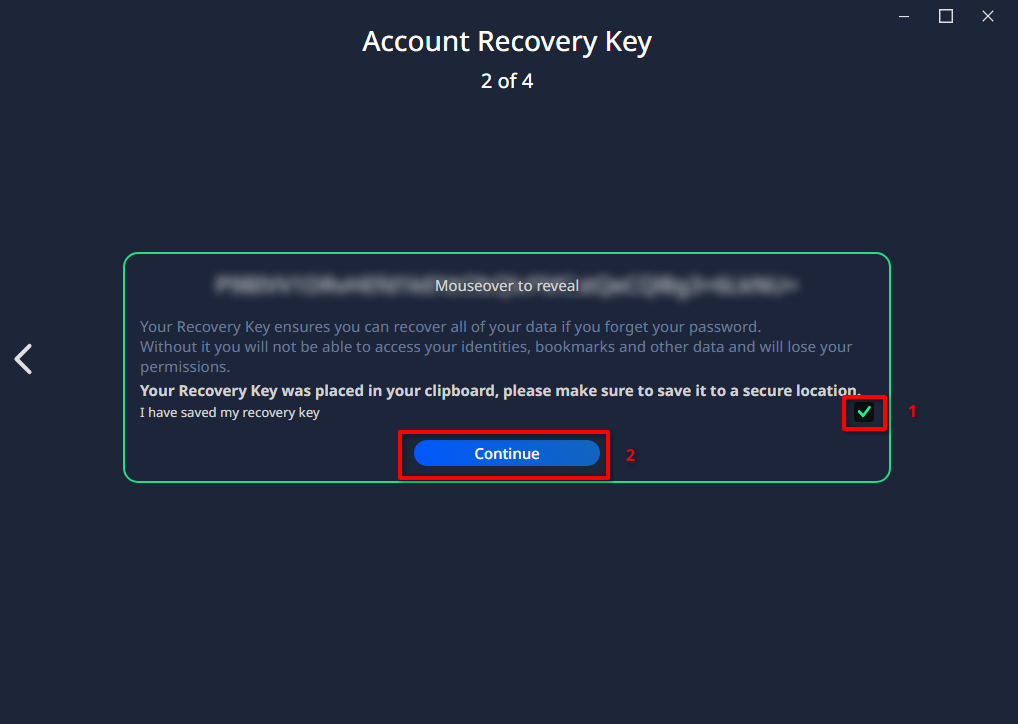
Teamspeak will ask you to back up your recovery key, if you forget your password you’ll need this key to get your teamspeak identity back.
In order to proceed click the checkbox and hit continue.
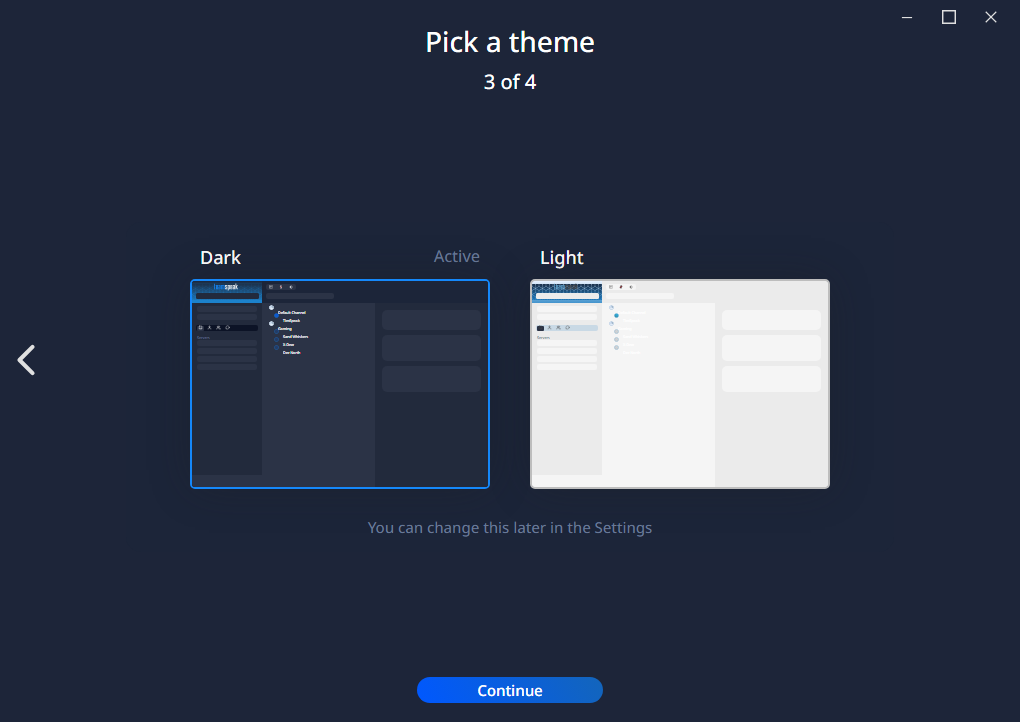
Pretty self explanitory, choose a dark or light theme for teamspeak
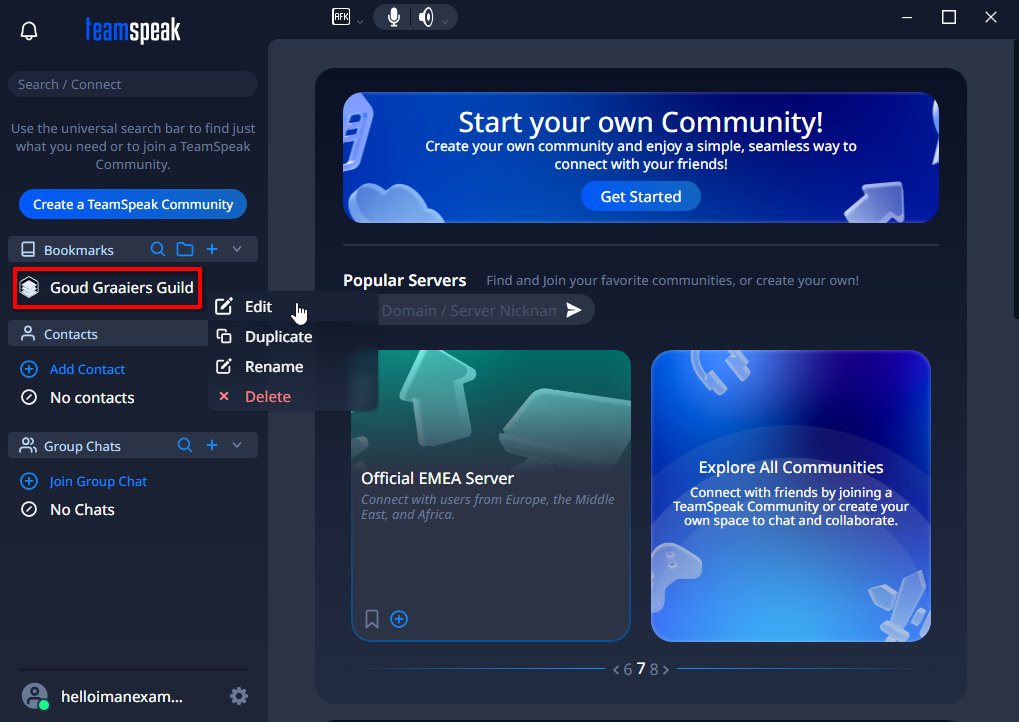
First click the plus to add a new bookmark,
Then type in donkey.beauty as the bookmark adress.
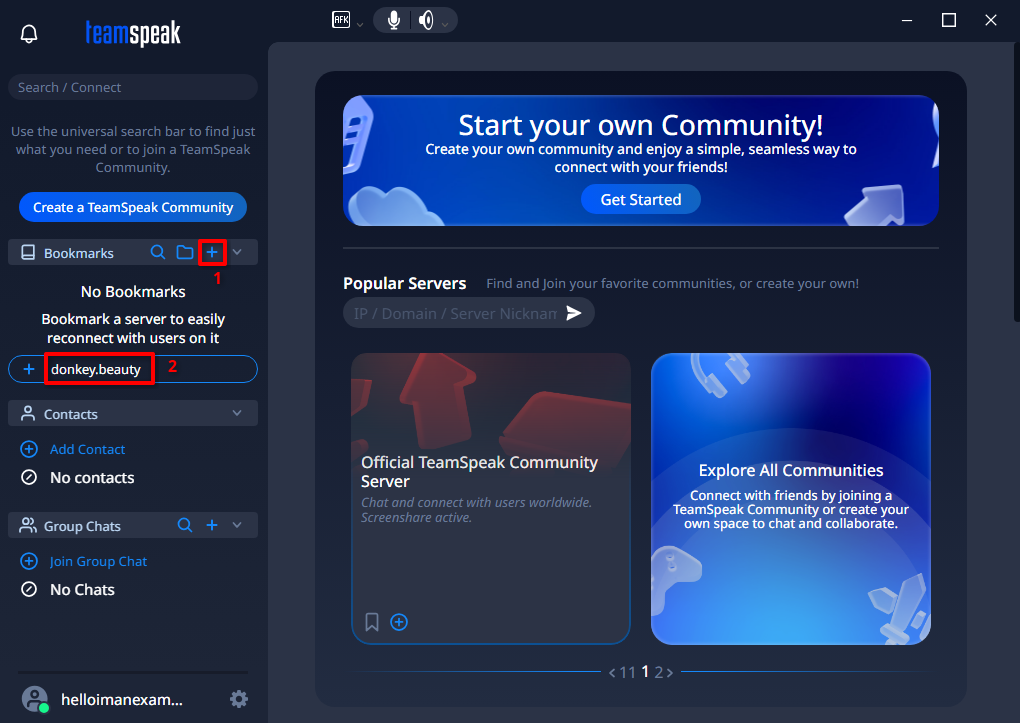
OPTIONALLY you can right click your newly created bookmark and change it’s display name to something memorable